A quiet user guide.
Everything you need to set up Garden Sentry, draw your first protected zone, and understand the responses.
Getting started
Before you start
- You're the primary Ring account owner (shared users may not be able to authorize apps)
- Your Ring account has Ring Appstore access (currently a limited rollout)
- A Ring subscription may be required to use Ring Appstore developer apps
- You have at least one supported Ring camera or doorbell
- Region availability may vary by camera model and country
Garden Sentry is built around a simple idea: watch your garden, recognize who shows up, and respond gently. The whole setup takes about two minutes once the prerequisites above are met.
- Create your account at signup.
- Connect your Ring account. We'll list your cameras automatically.
- Select the cameras that look at your garden.
- Draw your first protected zone — usually a vegetable bed or flower border.
- Choose which responses should activate and during what hours.
That's it. Garden Sentry will start watching and the dashboard will populate as visitors are recognized.
Connecting Ring
Garden Sentry uses Ring's official App Integration API. When you connect, Ring asks you to authorize Garden Sentry to receive event notifications from the cameras you select. You can disconnect any time from Settings or directly from the Ring app.
We never receive your Ring password or full video archive. We get a short event clip when motion happens on a camera you've linked — just enough to recognize who's there.
Protected zones
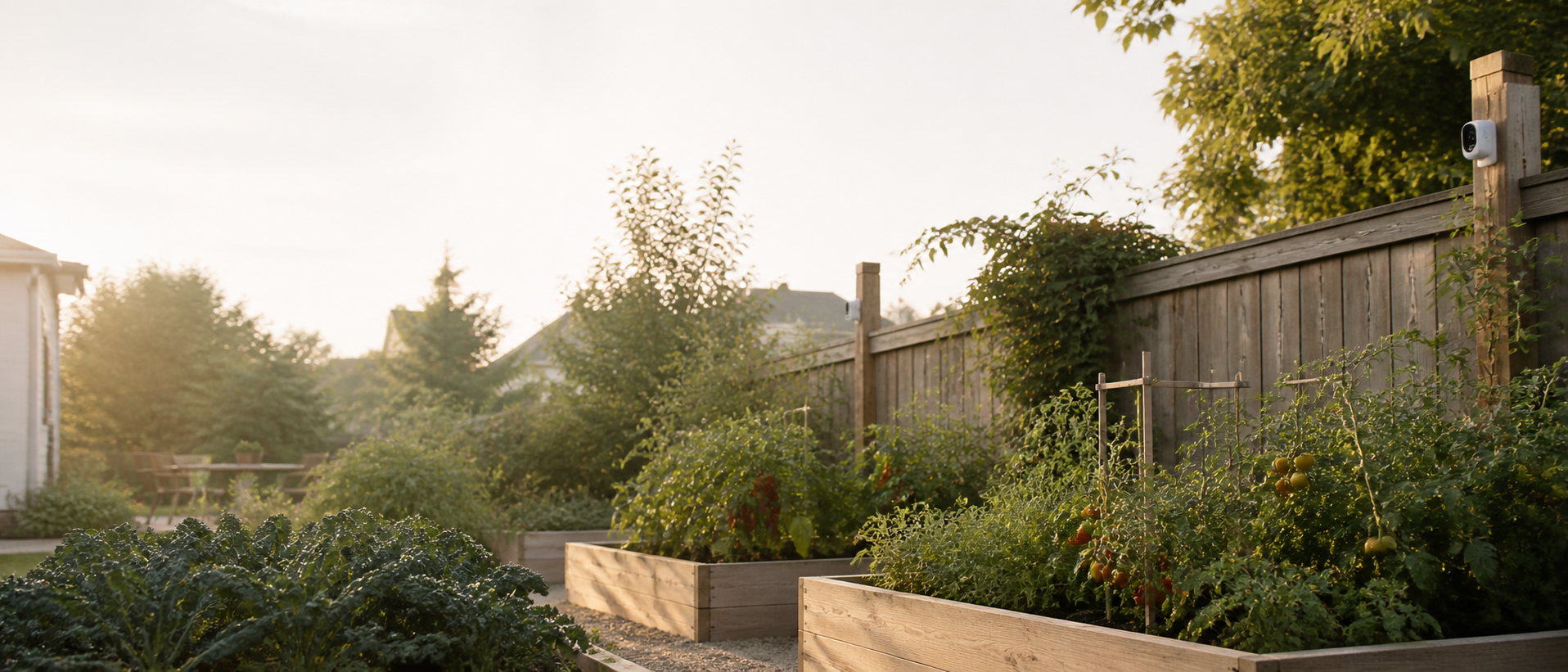
Zones are the heart of Garden Sentry. A zone is a polygon you draw on your camera view that defines an area you care about — a raised bed, an herb spiral, the tomato patch.
Responses only activate when a visitor enters a zone. A deer walking past the fence but outside your zones won't trigger anything. This keeps the system calm: it reacts only when something worth reacting to happens.
Drawing a zone
- Open Protected zones and select a camera.
- Tap along the edge of the area you want to protect to add points.
- Three points minimum. Name the zone (e.g. "Tomato beds") and save.
Response sequence
When a visitor enters a zone, Garden Sentry runs through a gentle sequence of responses until the visitor leaves:
- Alert — a push notification to your phone
- Sound — a short Ring siren tone
- Sprinkler — a two-second spray from a connected smart sprinkler
- Lights — a soft flash from connected outdoor lights
Most visitors move along after the first response. You can disable any step in Settings.
Quiet hours
Quiet hours pause sound deterrents so you (and your neighbors) can sleep. Detection continues; only the siren is suppressed. Sprinklers and lights still work if configured. The default window is 9:30 PM to 7:00 AM; you can adjust it in Settings.
Weekly summary
Every Sunday morning we send a short email with the week's activity — total visitors recognized, species breakdown, response effectiveness, and a protection score. It's designed to read in under a minute over coffee.
Integrations
On Pro:
- Smart sprinklers — Rachio, Orbit B-hyve (coming soon)
- Smart lights — Hue, LIFX (coming soon)
- Home Assistant — local automation bridge (coming soon)
Tell us which integration you want next at support@gardensentry.app.
Troubleshooting
My cameras aren't appearing
Check that Ring integration is still connected in Settings. If it is, try disconnecting and reconnecting. If you still don't see a camera, it may not be in a region supported by the Ring API yet.
I'm getting too many alerts
Tighten your zones — a smaller, more specific polygon will catch fewer incidental crossings. You can also raise the minimum confidence threshold in Settings.
The sprinkler isn't firing
Make sure the sprinkler is toggled on in Settings and that its integration is healthy (check System health on the dashboard). If it's green and still not firing, email us with the timestamp and we'll look at the event.